
Manage staff
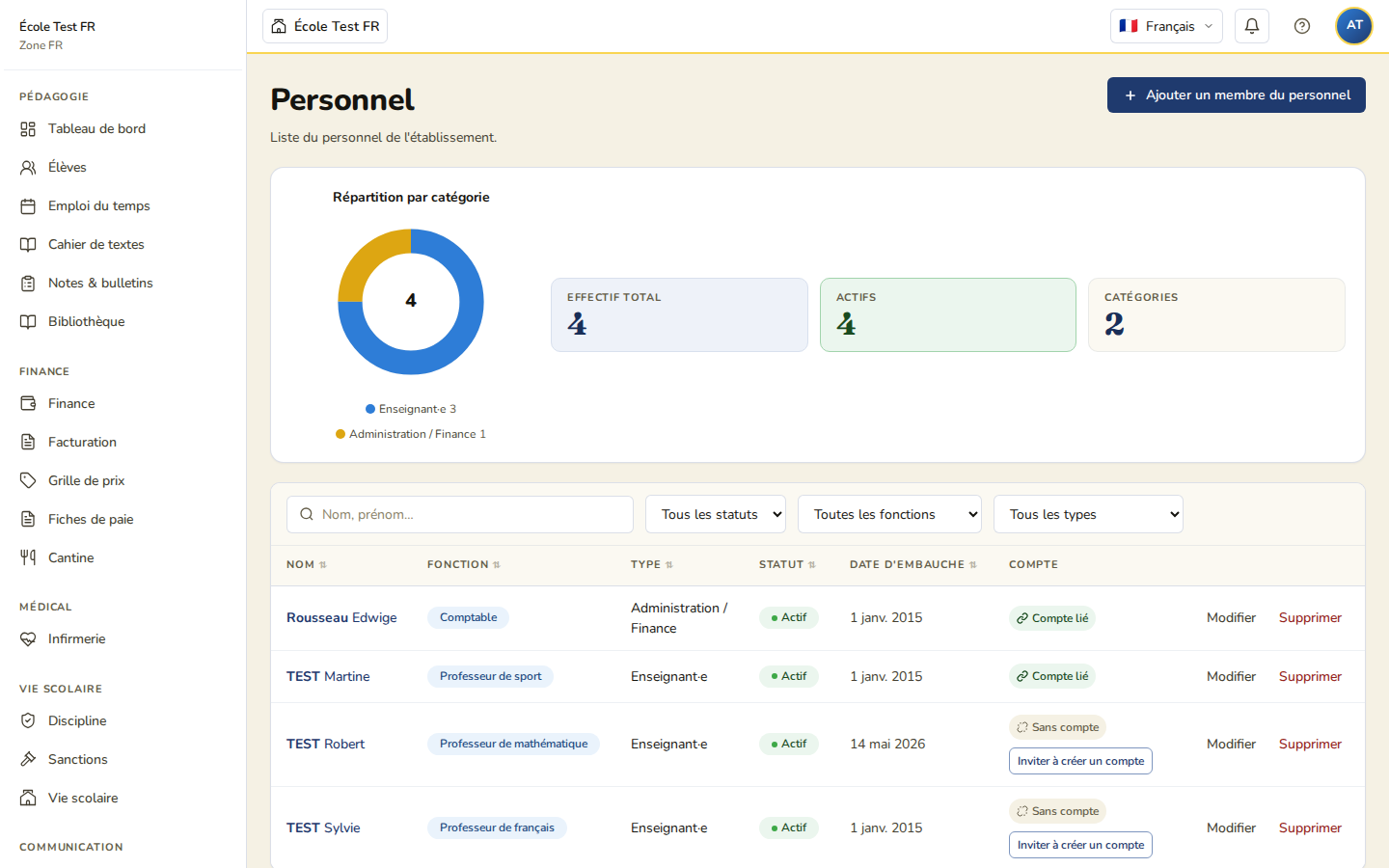
Add a staff member
- Menu Staff -> Add a staff member.
- Fill in: Title, First name*, Last name*, Job title* (free text, e.g. “Mathematics teacher”), Category*, Hire date*, Initial status. There is no date-of-birth field.
- Enter the e-mail address and tick “Send an e-mail to the employee” if you want to send the invitation to create a Schoolysoft account immediately.
- Click Add staff member.
Available categories (8): Teaching, Leadership, Administration / Finance, Student life, Health / Medical room, Maintenance, Catering / Support, Other.
Contract types
Permanent (CDI), Fixed-term (CDD), Freelance, Internship, Volunteer.
To add a contract:
- Staff record -> New contract.
- Fill in the type, dates (end date only for a fixed-term contract), and working hours.
Sensitive data
Salary information is visible only to the School Administrator — the Headteacher sees it hidden.
Granting portal access
Staff record -> User account tab -> Create account. The application automatically links the profile to an existing account with the same e-mail address, or sends an invitation if no account exists.
Suspending access or removing a member
Upon departure or for a temporary suspension: Settings -> Accounts & access -> Members -> Suspend (or Remove from school for a permanent removal). The history is retained.