
Grade entry grid
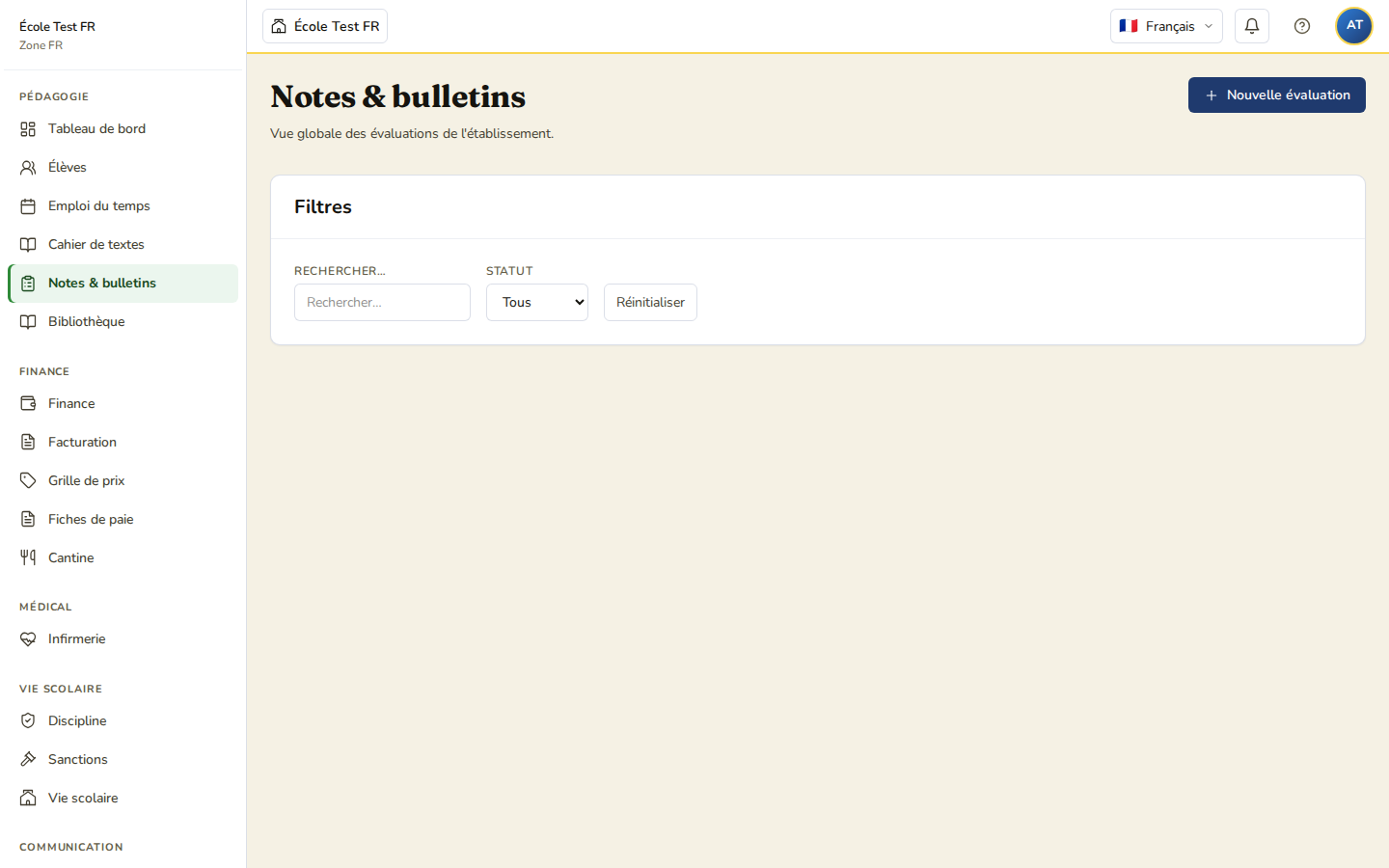
Create an assessment
- Grades & report cards menu → New assessment.
- In the form, choose the class, the subject and the period, then fill in the title, type, scale and coefficient.
- Click Create.
Enter the grades
In the entry grid:
- Click a student’s cell and type their grade.
- If the student has no numeric grade, choose their status from the dropdown: Justified absence, Unjustified absence, Not submitted, Exempt.
- The grid auto-saves (with a short delay of about one second after you type) — no manual save is needed.
Appreciations
Each student has an Appreciation column in the grid (1000 characters maximum). Write it directly in the grid, alongside the grade.
AI suggestion (if the option is enabled for the school): click the AI suggestion button next to a student to get a proposed text based on their grades, which you can use, copy or dismiss.
Publish the assessment
Once entry is complete, publish the assessment with the Publish button: grades and appreciations become visible to families.
Bulk import
Importing grades from a file is not available yet. The Import Excel button is present in the interface but disabled, labelled “Coming soon”.