
Enter grades and publish an assessment
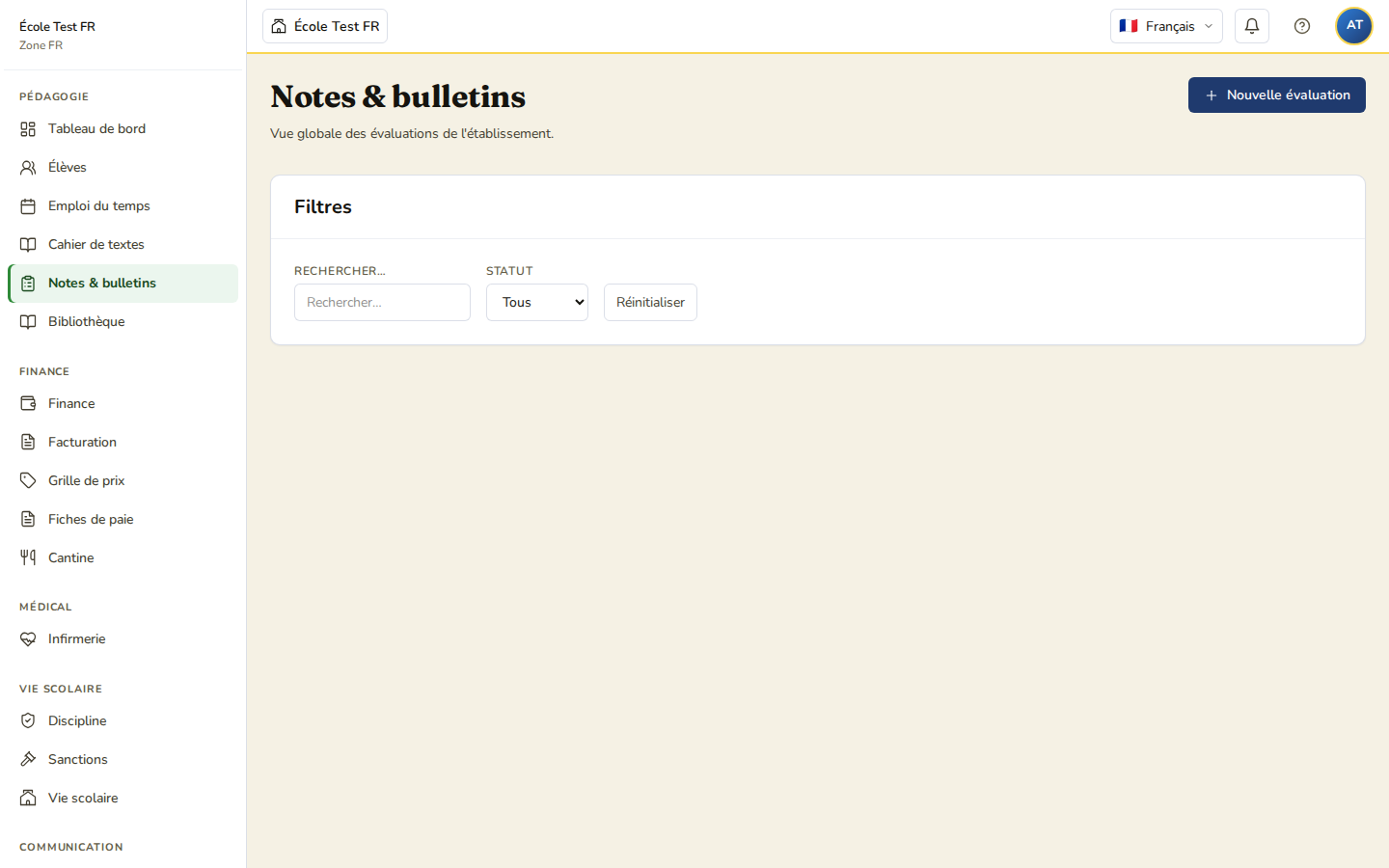
A guide to creating an assessment, entering grades and publishing them.
Create an assessment
- Grades & report cards menu → New assessment.
- Choose the class, the subject and the period in the form.
Assessment settings
| Field | Description |
|---|---|
| Title | E.g.: Chapter 3 test |
| Type | Test, Homework, Continuous assessment, Exam, Project |
| Coefficient | Weight in the average (default: 1) |
| Scale | Maximum grade (20 by default) |
Enter the grades
For each student, enter a grade or a status from the dropdown menu: Graded, Justified absence, Unjustified absence, Not submitted, Exempt. There is no code to type — the status is chosen from the list.
Calculating the average
The average is always weighted by the assessments’ coefficients and computed on grades normalised to a scale of 20. Full details: Calculating averages and ranking.
Publish the grades
Once entry is complete, click Publish grades. The grades then become visible to parents and students. You, the teacher, publish your own assessments.
Report cards
Report cards are not generated assessment by assessment: they are produced by the end-of-period signature campaign, run by the head office. There is no “Generate report cards” or “Send to families” button in the Grades module — sending to families happens automatically at the moment of signature. See Report cards.