
Add and edit a student record
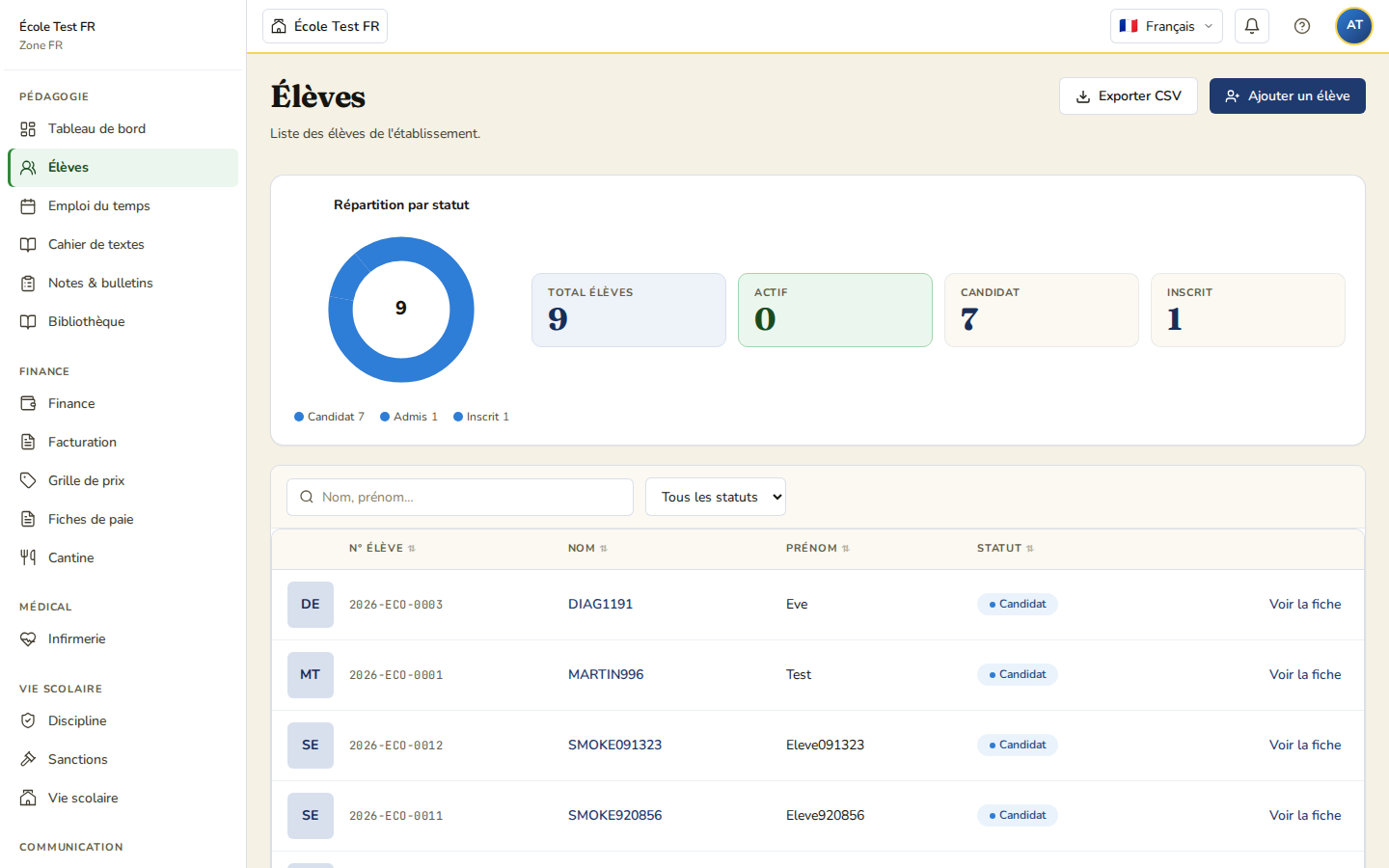
Create a new record (3-step wizard)
From the Students menu, click New student. A wizard guides you through 3 steps:
- Identity — Last name, First name (required), preferred name, birth date, gender, birth place, nationality, INE (France only).
- Address & consents — country (required), city, postal code, and the photo consent (image rights).
- Summary — review the information, then confirm the creation.
Each step is validated before moving on; upon confirmation you are redirected to the new student’s record.
To create many students at once, use the CSV import (up to 1,000 rows).
Edit an existing record
- Open the student record → click Edit record.
- Change the fields you need → click Save.
Student record tabs
| Tab | Content |
|---|---|
| Profile | Identity, contact details, status |
| Enrollments | Enrollment history and class assignments |
| Grades / Report cards | The student’s academic results |
| Attendance | Absences and lateness |
| Homework | Work assigned in the class journal |
| Documents | Supporting documents |
| Health | Restricted access, GDPR Art. 9 (nurse, management) |
| Legal guardians | Parents and guardians (admins, directors) |
Statuses
Candidate, Admitted, Enrolled, Active, Transferred, Removed, Graduated, Archived.
Only Active and Enrolled students count towards your plan’s student quota.