
Add a legal guardian
The parent portal lets families follow schooling: grades, absences, report cards and invoices, depending on the rights configured for each link.
From the student record
On the student record, open the Legal guardians tab. Two buttons are available:
- Add a guardian: creates a new guardian and links them directly to the student.
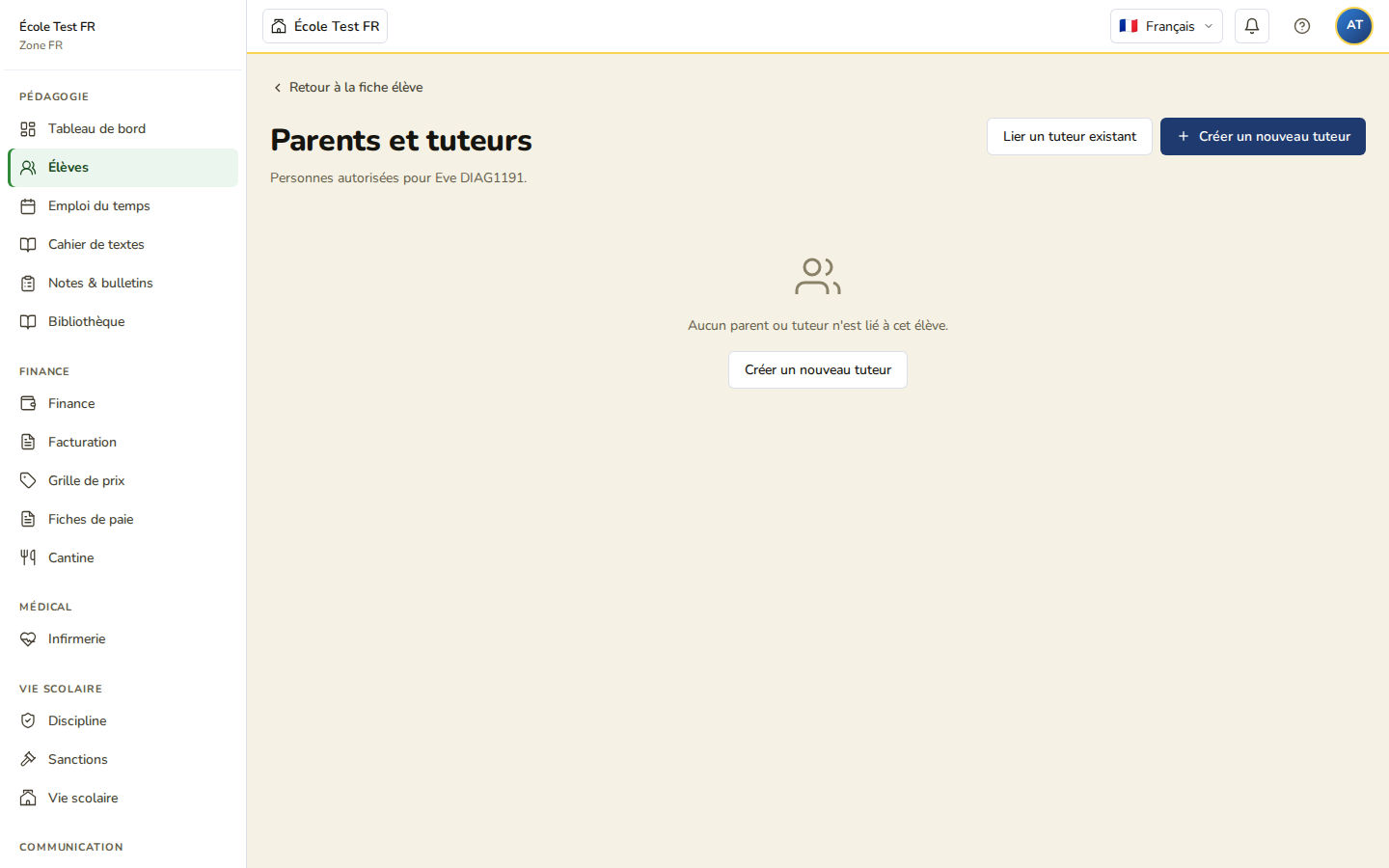
- Link a guardian: links a guardian already registered at the school to the student (useful for siblings, for example).
From this tab, the Manage guardians link opens the dedicated “Parents and guardians — [student name]” page, which offers the same actions under the labels Create a new guardian and Link an existing guardian, along with a summary table with columns Name, Relationship, Custody, Rights, Contact, Actions. For each row, the available actions are View record and Edit link.
Create a new guardian
The creation form includes:
- an identity section: first name and last name (required), e-mail, phone, address, city, postal code, country, employer, occupation;
- a Link to the student section: relationship type, custody arrangement, and access rights (see table below).
Relationship types
Five relationships are available: Father, Mother, Legal guardian, Grandparent, Other.
Custody arrangement and rights
| Field | Values / description |
|---|---|
| Custody arrangement | Full custody, Joint custody (the most common case), Visiting rights, No rights |
| Authorised to pick up the student | Authorisation to collect the student |
| Can sign authorisations (outings, photos…) | Signing school authorisations |
| Access to grades and report cards | View assessments and report cards |
| Access to absences | View absence tracking |
| Billing contact (invoice payer) | Recipient of the student’s billing |
Link an existing guardian
The search field lets you find a guardian already registered at the school (for example for another child in the same family). Only genuinely available guardians appear: those already linked to the current student are automatically excluded from the results.
Start typing the first or last name to filter the results.

Invite the parent to the portal
From the guardian’s record, the Invite this parent to create their account button sends an invitation e-mail to the address on file. A confirmation message “Invitation sent successfully to [email]” appears once the invitation is sent.
While creating a student, the enrolment form lets you add 1 to 3 guardians directly (“Add the student’s legal guardian(s) (1 to 3 guardians)”). This limit only applies to that creation form: once the student record exists, you can add or link further guardians from their record with no limit on the number.